
Attendance
Daily attendance sheet
Mark present / absent in a few clicks, on the floor or from the coach mobile app.
Updated May 23, 2026
Attendance sheet
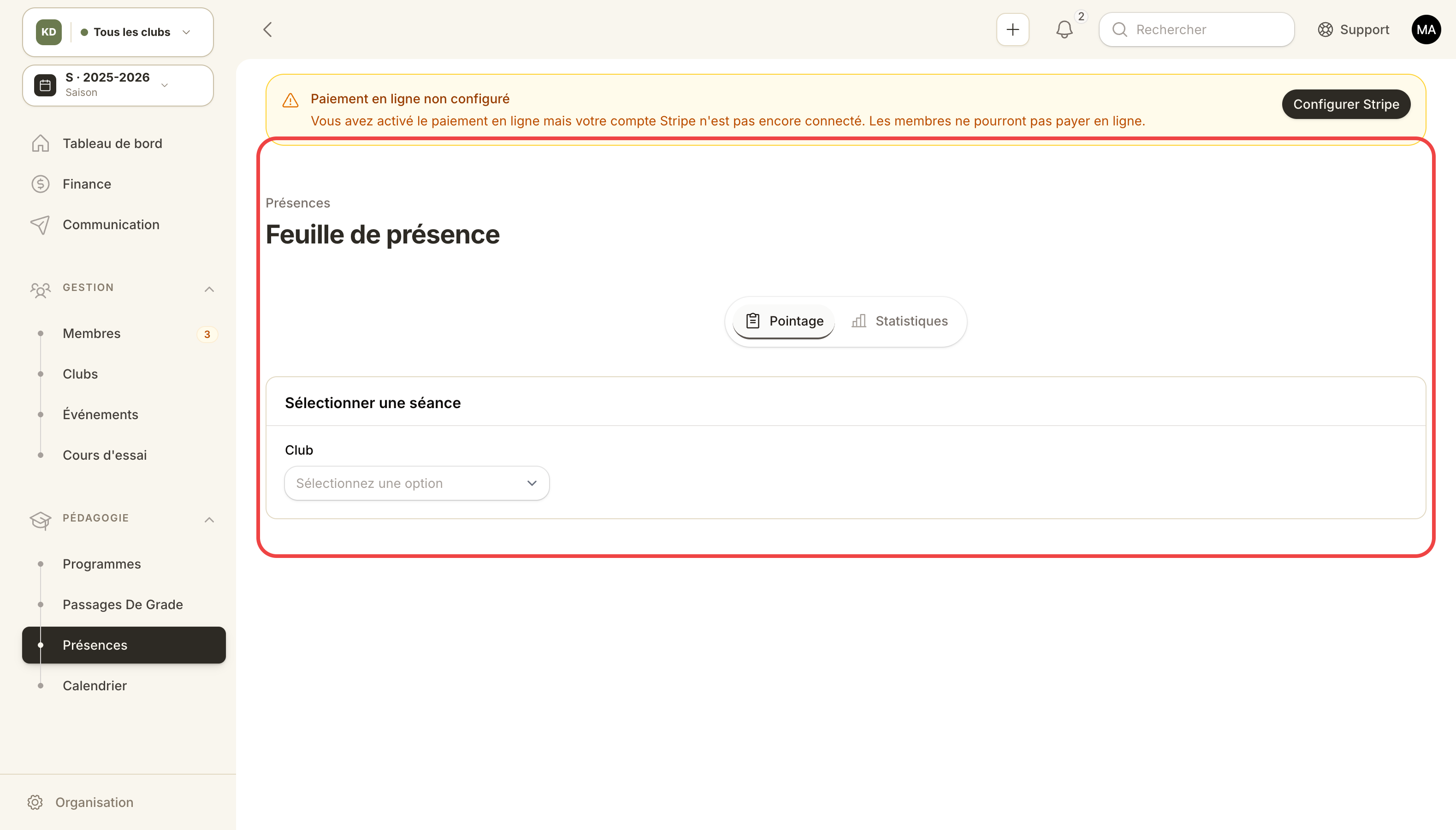
Mark-attendance UI used by coaches at the start or end of class.
The attendance sheet is the screen coaches use at the start / end of class to mark who showed up.
Open the sheet
Admin panel → Attendance → Attendance sheet.
Filters:
- Date (defaults to today).
- Club.
- Session (pick from the day's scheduled sessions).
Mark attendance
Once you pick a session, you see the expected members (those whose plans cover this discipline + slot).
For each member:
- Present: click the green tick.
- Absent: click the red cross.
- Excused: middle option (doesn't penalize attendance stats).
You can also:
- Mark all present (handy when it's faster to remove the absentees).
- Add a drop-in non-expected member.
- Add a trial (prospect testing the class).
Use case — coach at the start of class
6:05pm, the coach starts the kids' class. He pulls out his tablet.
- Sign in to the admin panel with his Coach account.
- Attendance sheet → the current session is pre-selected.
- He scans the room, swipes through the present.
- Saves before the class ends — done.
Use case — backfill
If you forgot to mark, open the sheet a day later with the date filter. Attendance can be entered retroactively (good for the Monday-morning catch-up).
Impact on stats
Each saved attendance feeds:
- Attendance stats per member (presence rate).
- Coach reports (how many members across their classes).
- Organization dashboard (average attendance by club, by discipline).
Best practices
- Pick a convention: Excused or Absent? Stay consistent or stats get noisy.
- Mark at the end of class rather than the start: you avoid counting latecomers as absent.
- Forgetting once is fine. Forgetting every week makes the metric useless.