
Clubs and sessions
Class reservations
Enable per-class reservations, manage the waiting list and send email reminders.
Updated May 27, 2026
This page explains how to enable reservations on your classes and send members an email reminder before each session.
Before you start
Decide, class by class, whether reservations are required. A class without reservations stays open: members come whenever they want, within the limits of their plan.
Set the club defaults
Open Clubs, click the club, then expand the Reservation defaults section.
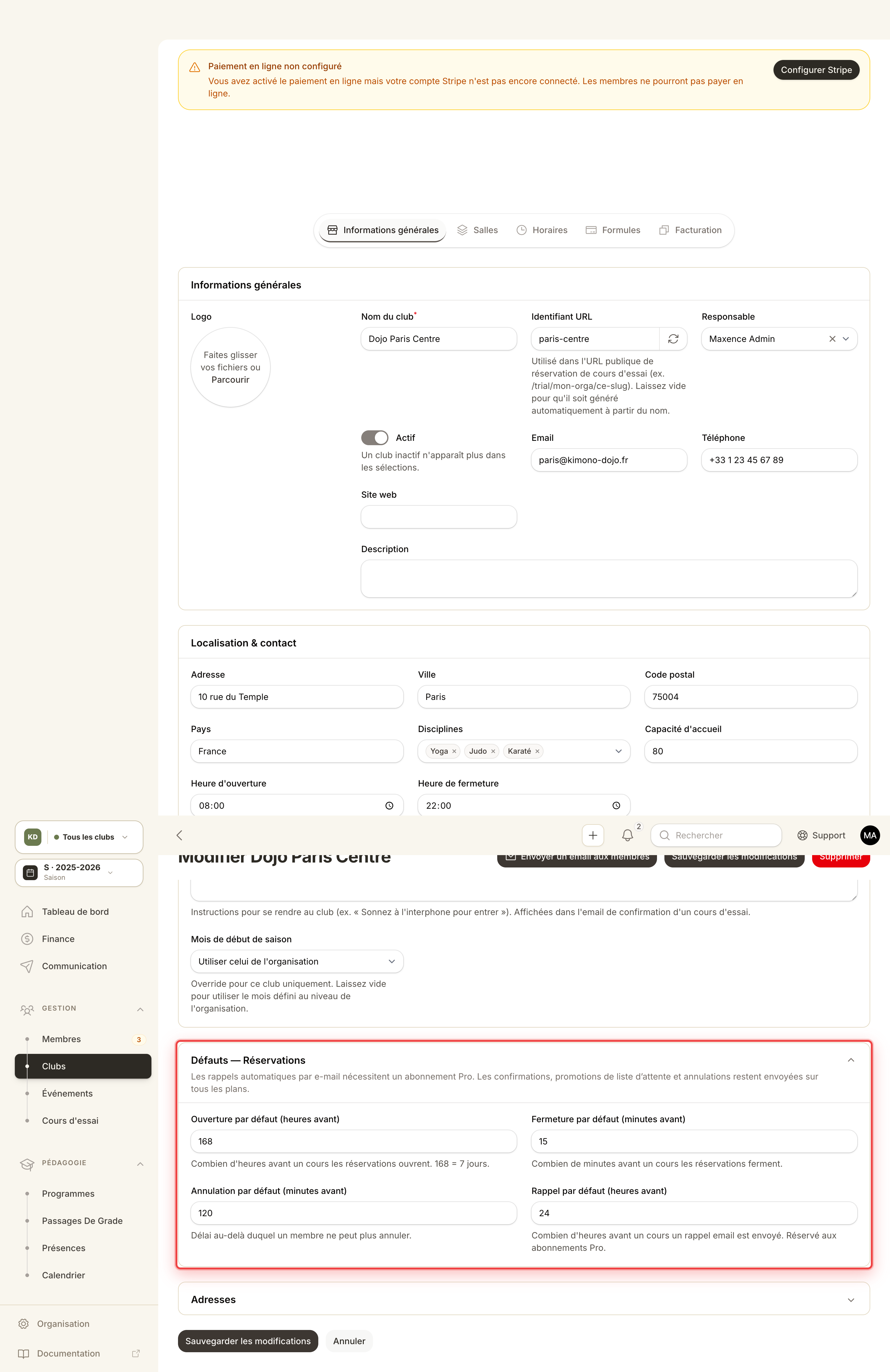
Four values apply to every class in the club by default:
- Default opening: how many hours before a class reservations open (168 h = 7 days).
- Default closing: minutes before the class when reservations close.
- Default cancel deadline: how long before the class members can still cancel.
- Default reminder: how many hours before the class the reminder email is sent.
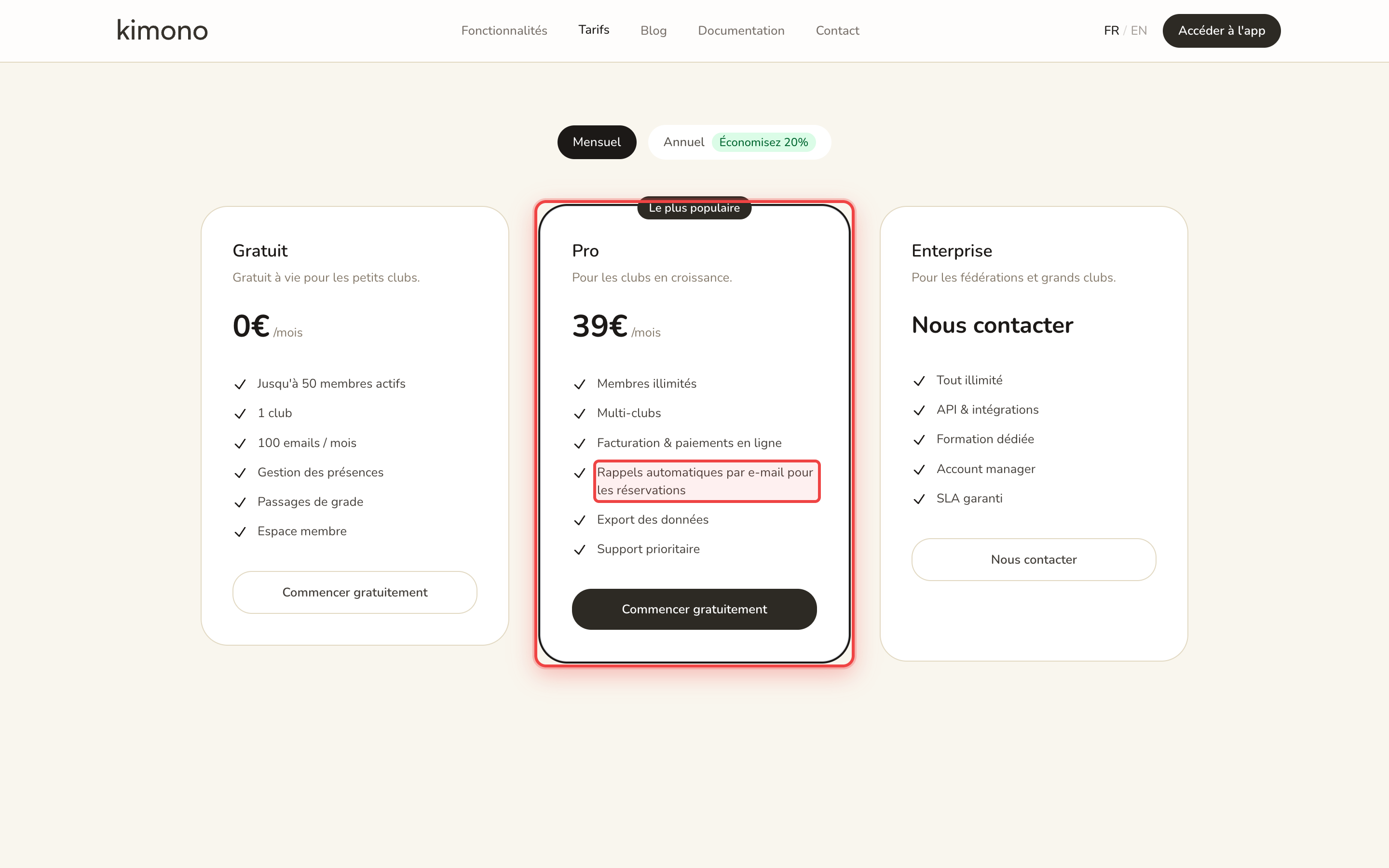
The email reminder is part of the Pro plan. On the free plan the field stays configurable, but no reminder is sent. Confirmation, waitlist-promotion and cancellation emails are still sent on every plan.
Turn reservations on for a class
Go to the Schedule tab on the club, click a class on the planning grid and expand the Reservations section.
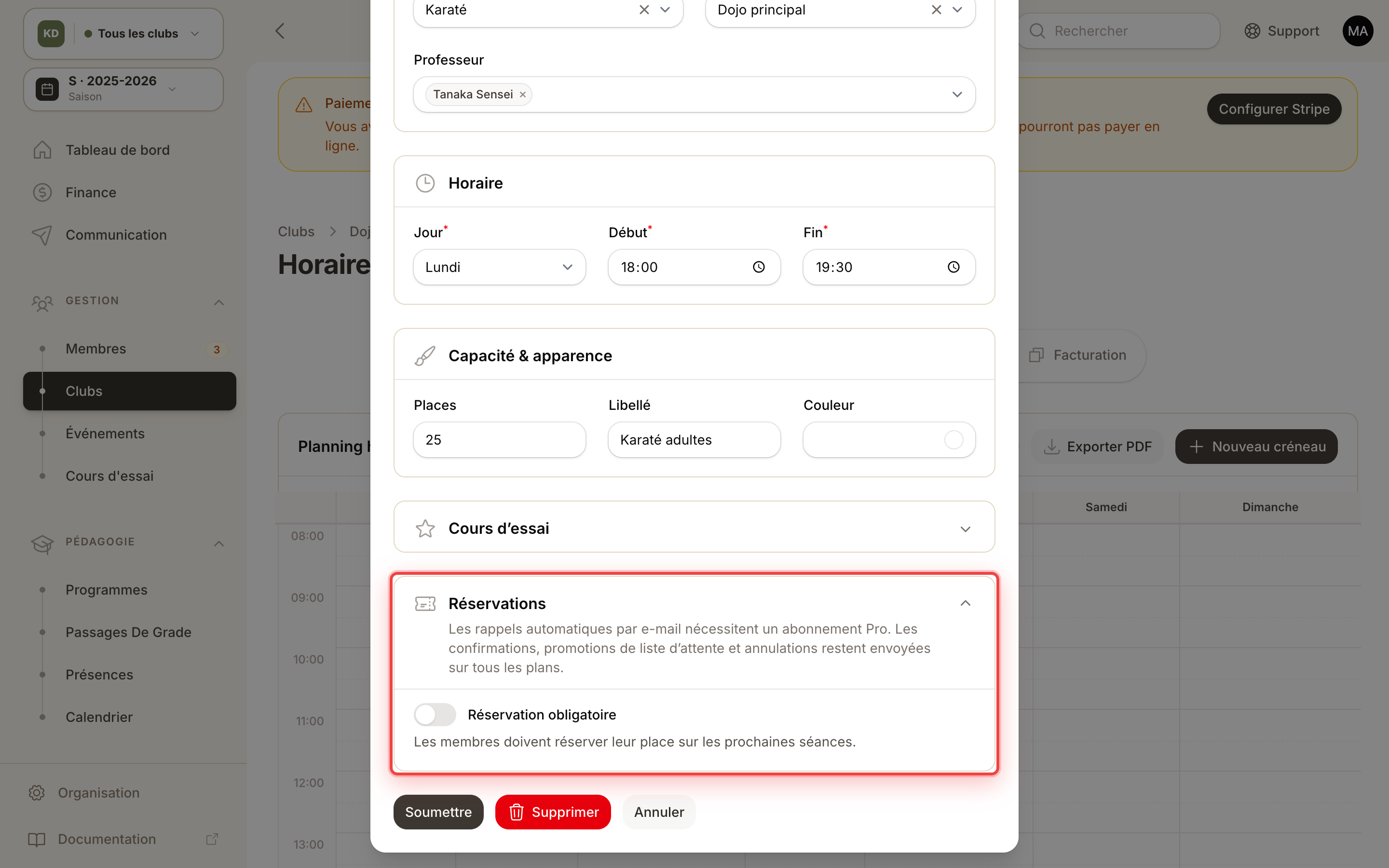
- Turn on Requires reservation.
- Choose who can book: only members enrolled in this class, or any active member.
- Override the open, close and cancel windows if you want this class to differ from the club defaults. Leave blank to inherit.
- Save the class.
Reservations are now open on the next sessions of this class, up to the available seats.
What members receive
- When they book: a confirmation email, or a note saying they're on the waiting list.
- X hours before the class (Pro plan): a reminder email.
- When a spot opens up: automatic promotion from the waiting list, with an email.
- If the class is cancelled: an email explaining the cancellation.
Unlocking reminder emails
Reminder emails are part of the Pro plan. They're listed on the pricing page.
Tip
Leave the per-class fields empty to inherit the club defaults. Change only the club when your windows change everywhere at once.
Need help?
Email us at support@join-kimono.com — we'll set the right defaults with you.