
Clubs and sessions
Session calendar and capacity
Weekly view, capacity management, bulk cancel or move.
Updated May 23, 2026
Session calendar
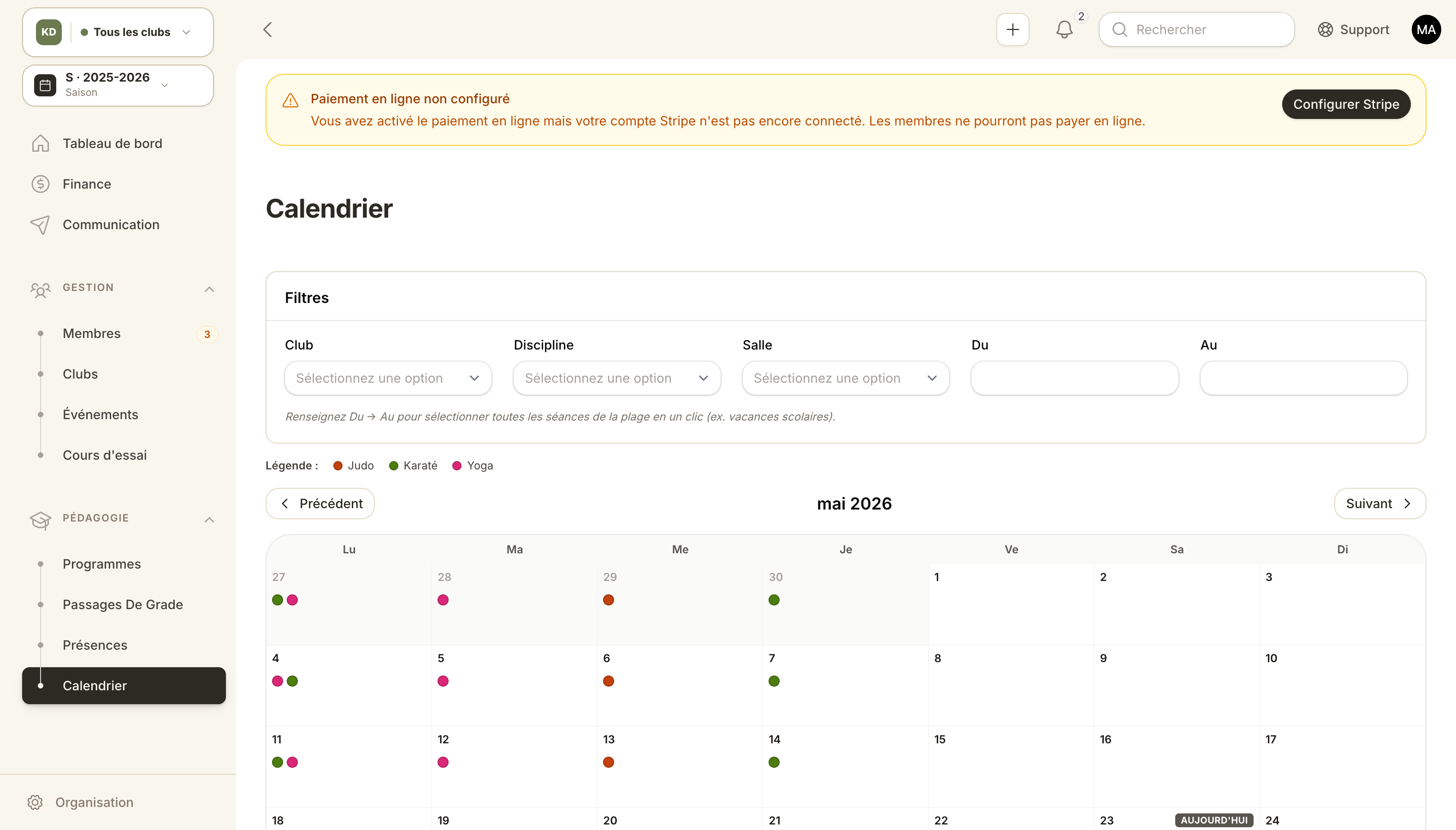
Weekly calendar centralizing every club session.
The calendar centralizes every session across all your clubs in a weekly or monthly view.
Open the calendar
Admin panel → Session calendar.
Available filters:
- Club (if you have several).
- Discipline.
- Coach.
- Status (scheduled, cancelled, rescheduled, completed).
Click a session
A detail panel opens with:
- Date, time, room, capacity.
- Coach.
- Expected attendees (members subscribed to matching plans).
- Mark attendance button (jumps to the day's attendance sheet).
Room capacity
If you set a max capacity on the club, Kimono shows occupancy:
- Green: under 80% of capacity.
- Orange: 80–100%.
- Red: capacity exceeded — overbook detected.
It's informational: Kimono won't block entry. The color tells you when to open a second session or stop taking sign-ups on that slot.
Use case — intensive week-long camp
You run a Mon–Fri camp with 3 sessions per day.
- Create those 15 ad-hoc sessions from the calendar (without touching the recurring schedule).
- Define a paid Event if access is billed separately.
- Otherwise, open the sessions to all members by checking Open access.
Use case — seasonal time shift
In September you push the 6pm class to 6:30pm.
- Instead of rescheduling each session, edit the weekly template on the club.
- Future sessions regenerate at the new time.
- Past sessions stay at 6pm (history preserved).
Mark a session as completed
Status Completed: useful for reporting and the attendance sheet. A past session that wasn't marked stays Scheduled — Kimono doesn't auto-close them by default.